



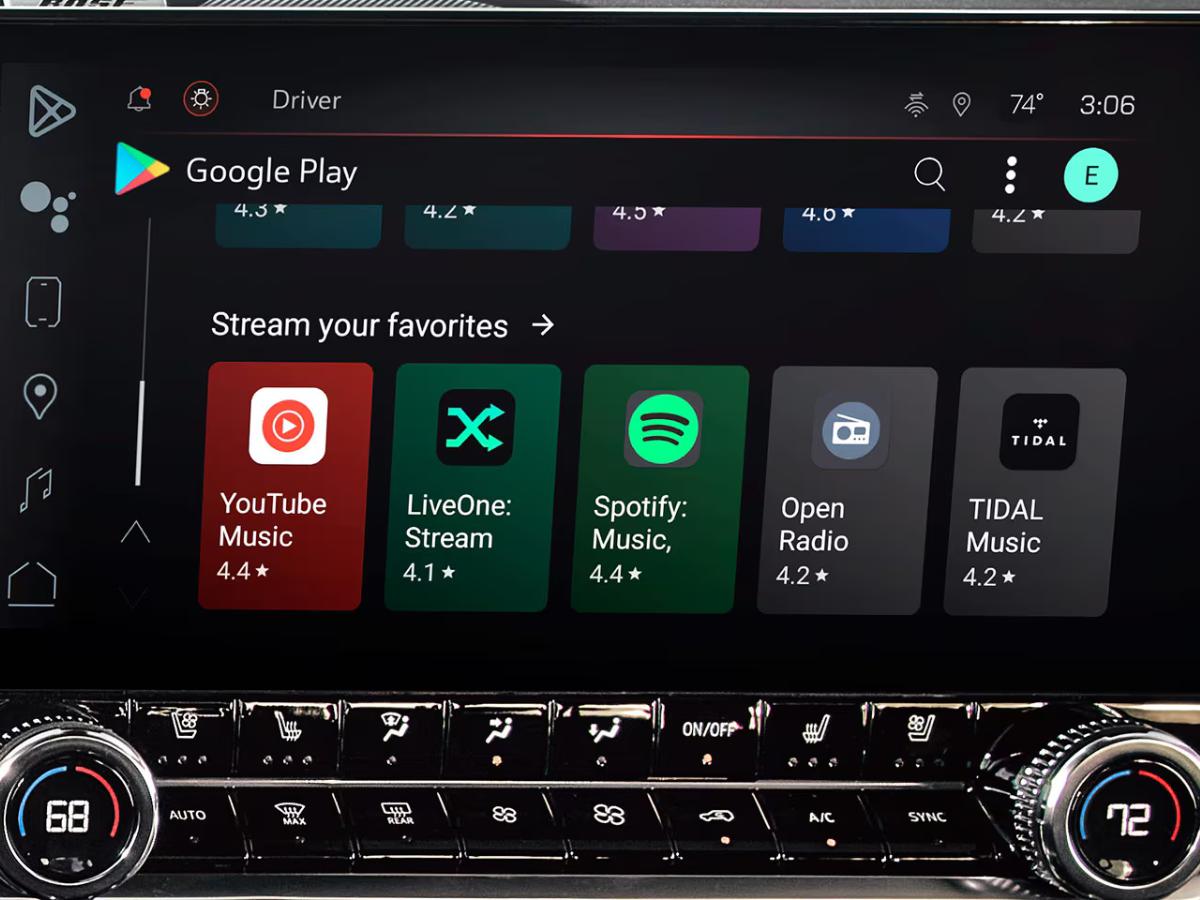
GMC trucks and SUVs are known for power and capability, but today’s drivers in Conway and Central Arkansas want technology that’s just as strong. That’s where Google Built-In comes in. Available on select GMC models, it puts Google Assistant, Google Maps, and Google Play directly into the dashboard, no phone needed, and no cables to plug in.
If you’re getting ready to bring home a new GMC from Crain Buick GMC of Conway, or you already have one and want to unlock its tech, this guide walks you through the setup process.
Step 1: Sign In to Your Google Account
When you start your GMC for the first time, the infotainment screen will ask if you want to sign in using your Google account. This is what makes the system feel personal and familiar.
How to sign in:
• Tap the profile icon on the infotainment screen
• Select “Sign in with Google”
• Enter your Google email and password
• Confirm your sync preferences
You can skip this step, but signing in unlocks your saved locations, playlists, contact syncing, and personalized Google Assistant experience.
Step 2: Set Up Google Assistant
Google Assistant is one of the strongest parts of Google Built-In because it keeps you hands-free on busy roads like I-40, Dave Ward Drive, or Salem Road.
To set up Google Assistant:
• Say “Hey Google” when prompted
• Allow microphone access
• Choose voice and response settings
• Review available commands such as navigation, calls, and messages
Once activated, you can say things like:
• “Hey Google, navigate to Crain Buick GMC of Conway.”
• “Hey Google, call my spouse.”
• “Hey Google, play my driving playlist.”
Step 3: Personalize Your Driving Experience
After signing in, your GMC will guide you through customization options to tailor the system to your driving style.
Drivers often adjust:
• Climate preferences
• Saved destinations
• Favorite apps
• Display layout
• Multiple driver profiles
• Trailer or towing settings (on equipped trucks and SUVs)
Many of these customization features work right alongside GMC Pro Safety Plus, giving drivers an added level of confidence during daily travel.
Step 4: Connect to Wi-Fi or OnStar for Full Features
Google Built-In uses a data connection to power navigation, app downloads, and voice commands.
Connection options include:
• Your GMC’s Wi-Fi Hotspot
• Your Home Wi-Fi
• Your Phone Hotspot
Some features may require an OnStar Connected Services plan, but most Google features activate once you sign in.
This connected setup is also a major part of GMC’s growing EV lineup, where Google Built-In helps drivers manage charging stops, navigation, and daily driving.
Step 5: Download Your Favorite Apps from Google Play
After connecting to Wi-Fi, you can download apps directly from the built-in Google Play Store.
Popular downloads include:
• Spotify
• YouTube Music
• Audible
• Podcasts
• Weather apps
• News updates
Everything updates automatically in the background.
Step 6: Try Google Maps in Real Driving Conditions
Google Maps offers real-time routing, which is especially helpful for drivers navigating Central Arkansas. It can help avoid delays, show restaurant or fuel stops, and adjust routes instantly.
Google Maps provides:
• Live traffic data
• Rerouting around accidents
• Lane guidance
• Voice-activated navigation
• Local business search
• Offline features in certain situations
For Conway drivers who tow boats, equipment, or campers, pairing Google Maps with one of GMC’s best trucks for towing makes route planning easier and more confident.
Which GMC Models Have Google Built-In?
Google Built-In is available or standard on these GMC models:
• GMC Yukon & Yukon XL
• GMC Sierra 1500
• GMC Sierra Heavy Duty
• GMC Acadia (new generation)
• GMC Terrain (availability may vary by trim)
Shoppers comparing trims often look at the newest GMC Terrain features to see how its layout and technology complement Google Built-In on compatible models.
Those considering the latest Acadia can also explore its updated drive modes, which work smoothly alongside Google Built-In for different road conditions.
Why Conway Drivers Love Google Built-In in Their GMC
Local GMC owners appreciate technology that fits towing, commuting, and family travel. Google Built-In helps with:
• Voice control for safer driving
• Real-time navigation on busy Central Arkansas roads
• Better towing route planning
• Hands-free communication
• A simple interface that feels familiar immediately
Many drivers who enjoy hands-free navigation also look into available Super Cruise technology, which brings additional convenience on longer highway trips.
TL;DR: Quick Summary
• Sign into Google for personalization
• Set up Google Assistant for hands-free commands
• Use Wi-Fi or OnStar for full features
• Download apps through Google Play
• Use Google Maps for real-time routing
• Available on GMC Yukon, Sierra, Acadia, and more
Explore Google Built-In at Crain Buick GMC of Conway
If you want help setting up Google Built-In or you’re shopping for a GMC that offers it, our team can walk you through everything in person. Drivers from Conway, Vilonia, Cabot, Mayflower, and the surrounding area stop by often to experience these features firsthand.
You can:
• Test Google Assistant voice commands
• Explore navigation and towing features
• Try apps on the built-in Google Play Store
• Compare models and trims that offer Google Built-In
If you’re also exploring budget-friendly options, several used GMC models offer advanced infotainment features that work well for modern driving needs.
Shoppers comparing both brands often explore how Google Built-In functions in Buick SUVs as well, since Buick offers a similar system with a more comfort-focused driving experience.
FAQ: GMC Google Built-In
Q: Does Google Built-In require OnStar?
A: Some features may require a plan, but most Google services work once activated.
Q: Do I need a Google account?
A: A Google account unlocks personalization and synced content.
Q: Can multiple drivers use the system?
A: Yes, each driver can sign in with their own profile.
Q: Do apps update automatically?
A: Yes, they update through Google Play.
Q: Is Google Assistant hands-free?
A: Yes, simply say “Hey Google” to get started.
Connect with us


